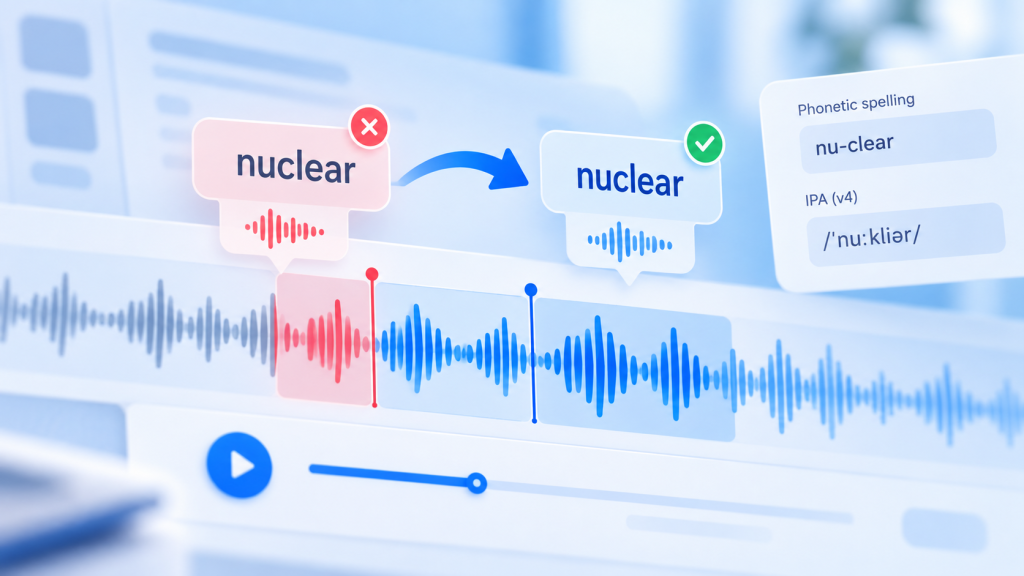
Is ElevenLabs pronouncing names, technical terms, abbreviations, or numbers incorrectly? You’re not alone in running into this limitation of AI text-to-speech.
Even a natural-sounding AI voice can misread an unfamiliar name, pronounce an acronym as a word, or switch accents unexpectedly.
The good news is that you don’t always need a different voice or a paid upgrade. Many ElevenLabs pronunciation problems can be improved by changing your script, adding an alternative spelling, or using a pronunciation dictionary.
This guide explains nine practical fixes, including the newer pronunciation controls available in Eleven v4.
Updated October 29, 2026. Instructions are based on ElevenLabs’ published documentation. Interface options and model support may change.
Affiliate disclosure: This article contains affiliate links. Radavora may earn a commission if you sign up through our links, at no additional cost to you.
Quick Answer: How Do You Fix ElevenLabs Pronunciation?
Start with these steps:
- Check the spelling of the word in your script.
- Replace difficult words with pronunciation-friendly spellings.
- Write out acronyms, numbers, and abbreviations.
- Create a pronunciation dictionary for recurring words.
- Use IPA pronunciation controls when supported by your model.
- Choose a voice with an appropriate accent.
- Test another text-to-speech model.
- Adjust punctuation and sentence context.
- Regenerate the affected passage and listen again.
For most beginners, the quickest fix is to rewrite the problematic word the way you want it spoken. For repeated brand names or character names, a pronunciation dictionary is usually more convenient.
Why Does ElevenLabs Mispronounce Words?
ElevenLabs generates speech based on the text, selected voice, model, and surrounding context.
Pronunciation errors can occur when:
- A word has an unusual spelling.
- A name has several possible pronunciations.
- An acronym could be spoken as letters or as a word.
- A number could be interpreted in different ways.
- The selected voice uses a different accent.
- The script mixes languages.
- The model doesn’t support the pronunciation instructions you’re using.
According to ElevenLabs’ help documentation, even spelling mistakes can lead to unexpected pronunciation because the system may attempt to read the word as written.
That makes proofreading an important first step.
Fix 1: Check Spelling and Remove Ambiguity
Before changing advanced settings, inspect the exact text you’re generating.
Look for:
- Misspelled names.
- Missing spaces.
- Unusual punctuation.
- Abbreviations without context.
- Numbers that can be read in several ways.
For example, the text 2026 might be spoken as a year or as a quantity depending on the sentence.
If you need the year spoken a particular way, try writing:
Instead of: 2026
Try: twenty twenty-six
Similarly, if you want a code spoken digit by digit:
Instead of: 5072
Try: five zero seven two
These changes reduce ambiguity without requiring any special pronunciation feature.
Tip: Keep a copy of your original script if the exact written wording needs to appear in subtitles.
Fix 2: Use Phonetic or Alternative Spellings
One of the simplest workarounds is to replace a difficult word with text that more closely represents the intended sound.
ElevenLabs explicitly documents alternative spellings as a pronunciation technique.
For example, its own guidance suggests replacing an unusual spelling with a more phonetic one when the model reads it incorrectly.
Example: A fictional product name
Imagine your script contains a fictional product called Veylora, which you intend to be pronounced with three syllables.
If the model produces the wrong sound, you could experiment with alternatives such as:
Vay-loraVey-loraVay loh rah
These are illustrative spellings, not guaranteed pronunciations. The correct replacement depends on the sound you want and the voice you select.
Generate a short sample with each version and compare the results.
When this works best
Alternative spellings are especially useful for:
- Fictional character names.
- Brand names.
- Place names.
- Technical jargon.
- Foreign names in an English script.
Limitation: Phonetic spelling can sometimes create unnatural pauses or incorrect stress. If the result still sounds wrong, try a pronunciation dictionary or IPA.
Fix 3: Write Acronyms and Numbers the Way They Should Be Spoken
Acronyms are a frequent source of AI narration mistakes.
Some are normally pronounced as words, while others are spoken letter by letter.
The correct pronunciation also depends on context.
Example: Expand an acronym
Original: The UN released a report.
Alternative: The United Nations released a report.
This is useful if the AI is reading the abbreviation incorrectly.
Example: Clarify letter-by-letter pronunciation
If you need the letters of an abbreviation spoken individually, experiment with spaces or punctuation between them.
For example, an initialism such as API may be easier to control when written as A P I.
Example: Clarify money and measurements
Original: The service costs $15.50.
Alternative: The service costs fifteen dollars and fifty cents.
Original: The file is 2.5 GB.
Alternative: The file is two point five gigabytes.
ElevenLabs documents writing out values as a practical way to control how numbers, dates, and other structured text are spoken.
Fix 4: Create an ElevenLabs Pronunciation Dictionary
If a word appears repeatedly, manually changing every occurrence can become frustrating.
A pronunciation dictionary solves that problem by defining a rule for a particular word or phrase.
ElevenLabs supports two main kinds of rules:
- Alias rules: Replace a word or phrase with alternative text before speech generation.
- Phoneme rules: Specify a pronunciation using a phonetic notation such as IPA or CMU Arpabet, on supported models.
How to create a pronunciation dictionary
ElevenLabs’ October 2026 guide describes this workflow:
- Open the ElevenLabs Text to Speech application.
- Search for Pronunciation dictionary using the application’s search or actions interface.
- Open Pronunciation dictionaries.
- Create a new dictionary or select an existing one.
- Choose Add rule.
- Enter the exact word or phrase in the Input field.
- Choose Alias or Phoneme.
- Enter the replacement or pronunciation.
- Preview the result with your selected voice.
- Save your changes and apply the dictionary where needed.
The precise controls may differ between Text to Speech, Studio, Agents, and API workflows.
Example: An alias rule
Suppose your script uses:
UN
You could create this mapping:
| Input | Rule type | Output |
|---|---|---|
| UN | Alias | United Nations |
Whenever the matching rule is applied, the model can use the replacement.
Important: Capitalization matters
ElevenLabs states that pronunciation dictionary matching is case-sensitive.
A rule for Veylora may not match veylora.
Add separate entries if your scripts use different capitalizations.
For the official walkthrough, see the ElevenLabs Pronunciation Dictionary Guide.
Fix 5: Use IPA Pronunciation Controls With a Compatible Model
IPA stands for the International Phonetic Alphabet.
Unlike an approximate spelling such as Vay-lora, IPA provides a standardized way to represent speech sounds.
This can help when you need precise control over an unfamiliar name or technical term.
However, IPA support depends on the ElevenLabs model.
Eleven v4: Inline IPA
ElevenLabs’ current best-practices documentation says Eleven v4 supports IPA written directly in the text between forward slashes.
For example, a verified IPA transcription can be placed in the script using this format:
/IPA_transcription/
The transcription must use valid IPA symbols for the intended pronunciation.
Don’t invent IPA strings based on English spelling alone. Verify them with a reliable pronunciation dictionary or someone who knows the intended pronunciation.
ElevenLabs also recommends including stress markers for multisyllabic words where needed.
Older models: SSML phoneme tags
Some older models support SSML-style phoneme tags instead.
For example, ElevenLabs documents CMU Arpabet phoneme tags for compatible Flash v2 and Turbo v2 workflows.
But don’t paste these tags into every model and expect them to work.
Pronunciation support by model
| Model | Recommended approach |
|---|---|
| Eleven v4 / v4 Turbo | Inline IPA, dictionary rules, or aliases |
| Eleven v3 | Inline IPA or compatible dictionary rules |
| Eleven Flash v2 | SSML phoneme tags for English; dictionary rules |
| Eleven Turbo v2 | SSML phoneme tags for English; aliases |
| Eleven Multilingual v2 | Alternative spellings and alias rules |
Model behavior can vary by product interface. ElevenLabs’ current documentation is the authority for exact compatibility.
Common mistake: Trying an SSML <phoneme> tag with Eleven v4. ElevenLabs states that v4 uses newer IPA and dictionary-based approaches instead.
Fix 6: Choose a Voice With the Right Accent
Sometimes the problem isn’t the word itself.
It’s the selected voice.
ElevenLabs explains that pronunciation and accent behavior depend on both the text and the voice.
For example, an English-language script read by a voice with a different regional accent may produce a pronunciation you didn’t expect.
What to try
- Keep the same script.
- Select another voice with the accent you want.
- Generate a short sample.
- Compare the difficult words.
- Keep the voice that produces the most appropriate pronunciation.
This is especially relevant for names, regional place names, and multilingual narration.
A voice trained or configured around the intended accent may provide better results, although no particular voice guarantees perfect pronunciation.
Should you clone a voice instead?
ElevenLabs notes that a voice with the correct accent can help provide useful pronunciation context.
However, voice cloning isn’t necessary for most isolated pronunciation mistakes.
Try spelling changes and pronunciation rules first.
If you do use voice cloning, make sure you have the required authorization and rights.
For more information about ElevenLabs’ features, read our ElevenLabs Review.
Fix 7: Try a Different ElevenLabs Model
Different ElevenLabs speech models have different capabilities.
A model optimized for speed may not behave exactly like one designed for more expressive or multilingual narration.
More importantly, pronunciation instructions supported by one model may not work in another.
A simple troubleshooting test
Generate the same short passage using two compatible models.
Keep the following consistent:
- Script.
- Voice, where available.
- Intended language.
- Target pronunciation.
Then compare the results.
If you’re using a pronunciation dictionary, verify that the rule type is supported by both models.
Tip: When troubleshooting a specific word, use a short sample rather than regenerating an entire video narration repeatedly.
That can help reduce unnecessary credit usage.
Explore ElevenLabs voice options
If you want to compare the available models and paid features, explore ElevenLabs through our referral link.
Affiliate disclosure: Radavora may earn a commission from eligible sign-ups, at no additional cost to you.
Fix 8: Improve Punctuation and Sentence Context
AI text-to-speech doesn’t interpret every word in isolation.
The surrounding sentence can influence how a word is read.
For example, an abbreviation without context may be more ambiguous than the same abbreviation in a complete sentence.
Try adding context
Ambiguous: Read the API docs.
Clearer: Read the application programming interface documentation.
The second version removes the acronym entirely, although it also changes the wording.
Try shorter sentences
Long, complex sentences may make it harder to identify which part of the script is causing a problem.
Break the script into smaller sections and test the affected phrase separately.
Adjust punctuation carefully
Commas, periods, and line breaks can influence pacing.
However, punctuation is not a guaranteed pronunciation control, and too many inserted marks can make narration sound unnatural.
Use dedicated pronunciation rules when you need consistency.
Fix 9: Regenerate Only the Problematic Passage
Once you’ve changed the spelling, voice, model, or dictionary, generate a fresh audio sample.
Previously generated audio won’t automatically change simply because you updated a pronunciation rule.
For longer narration projects:
- Find the sentence containing the incorrect word.
- Correct the script or dictionary rule.
- Regenerate the relevant sentence or paragraph.
- Listen for the correct pronunciation.
- Check the transition into surrounding audio.
- Replace the original segment in your project.
If you’re using a separate editor, you can import the corrected narration there.
For creators combining AI voices with video editing, our ElevenLabs vs Descript for YouTube Voiceovers comparison explains the workflow differences.
Which Fix Should You Try First?
| Pronunciation problem | Best first fix |
|---|---|
| Misspelled word | Correct the spelling |
| Fictional brand name | Alternative spelling or alias |
| Repeated character name | Pronunciation dictionary |
| Technical term | Dictionary or IPA |
| Acronym read incorrectly | Expand it or create an alias |
| Number read the wrong way | Write it out in words |
| Wrong regional accent | Change the voice |
| IPA or SSML instructions ignored | Check model compatibility |
| Corrected word still sounds wrong | Regenerate and compare models |
For most creators, the combination of clearer text, a suitable voice, and a pronunciation dictionary is a practical starting point.
How to Prevent Pronunciation Problems in Future Voiceovers
If you regularly produce YouTube videos, podcasts, or audiobooks, create a repeatable pronunciation workflow.
Build a list of difficult terms
Keep track of:
- Character names.
- Product names.
- Company names.
- Technical terminology.
- Common acronyms.
- Foreign words.
Save approved pronunciations
Use a pronunciation dictionary for recurring terms where supported.
For other workflows, maintain a separate script glossary containing the original spelling and the preferred spoken version.
Test before generating a long script
Generate a short paragraph containing your most difficult words.
If the pronunciation sounds right, continue with the longer narration.
Keep your model settings consistent
Changing the voice or model can affect pronunciation.
Retest important terms whenever you make a significant change.
For creators publishing monetized videos, also review our guide to ElevenLabs Free Plan Commercial Use.
Frequently Asked Questions
Why is ElevenLabs mispronouncing names?
Unfamiliar names may have ambiguous spellings or pronunciations. Try a phonetic spelling, an alias rule, or IPA with a compatible model.
Does ElevenLabs support pronunciation dictionaries?
Yes. ElevenLabs supports pronunciation dictionaries with alias and phoneme rules, although phoneme compatibility varies by model.
Can I use IPA in ElevenLabs?
Yes, with compatible models. Eleven v4 supports inline IPA between forward slashes, while some older models use SSML phoneme tags or dictionary rules.
Why isn’t my phoneme tag working?
You may be using a model that doesn’t support that tag format. Eleven v4 doesn’t use the older SSML phoneme-tag approach. Check your model and switch to its supported pronunciation method.
Can ElevenLabs pronounce acronyms correctly?
Yes, but some acronyms need clarification. Try writing out the full phrase, separating letters where appropriate, or using an alias rule.
Does changing the voice improve pronunciation?
It can. ElevenLabs notes that accent and pronunciation behavior are influenced by the selected voice and language.
Do I need a paid ElevenLabs plan to fix pronunciation?
Not necessarily. Basic script changes and alternative spellings can help without a paid upgrade. Access to particular models and features depends on the plan.
Can I correct pronunciation after generating the audio?
You can change the script or pronunciation rule and regenerate the affected audio. Editing the dictionary alone doesn’t retroactively modify an existing recording.
Final Thoughts
ElevenLabs pronunciation problems are often fixable without replacing your entire voiceover workflow.
Start by proofreading your script and trying a clearer spelling.
If the same word appears repeatedly, create a pronunciation dictionary. For more precise control, use IPA or phoneme rules with a compatible model.
And if a word still sounds wrong, test another voice or model before committing to a long narration.
The most important rule is simple: test difficult words in short samples before generating your final audio.
Want to explore ElevenLabs’ current speech models and plans?
Explore ElevenLabs Voice Generation
Affiliate disclosure: Radavora may earn a commission if you subscribe through this link, at no additional cost to you.
For additional guidance, see our ElevenLabs Review and our ElevenLabs vs Descript comparison.
Official Sources
- ElevenLabs Pronunciation Dictionary Guide
- ElevenLabs Text-to-Speech Best Practices
- Using Pronunciation Dictionaries
- Why Is My Voice Mispronouncing Certain Words?
Editorial note: This guide is based on ElevenLabs’ published documentation. The examples are illustrative rather than results of independent hands-on testing. Product interfaces, model support, and plan features may change.